How to make viral 3D POV simulation reels with Claude (and schedule a month of them in one message)
A step-by-step guide to the “POV: a giant ship is heading at you” reels: what Claude is, the exact prompt for a 3D POV simulation with a heart-rate HUD, how to export it as a video, and how to schedule 30 of them to Instagram, TikTok and YouTube from one chat message.
A new kind of reel is spreading fast: a first-person 3D simulation of something terrifying. A container ship heading straight at you. A whirlpool pulling your boat into its eye. A stats panel in the corner shows the distance, the time to impact and your heart rate going up.
There is no camera, no actor and no face in these videos. This playbook shows how to build one with Claude, even if you have never written code, and how to put a full month of them on autopilot with postreadygo.
The format: a POV with your heart rate on screen
Here is the account that made us look. In November 2026 the Instagram account @pulse190bpm had just 7 posts and about 11,300 followers. Its ship reel (“POV: the ship can’t see you”) had 7.4 million views two days after it went up. The next one, a whirlpool POV, passed 1.7 million views in about 22 hours.
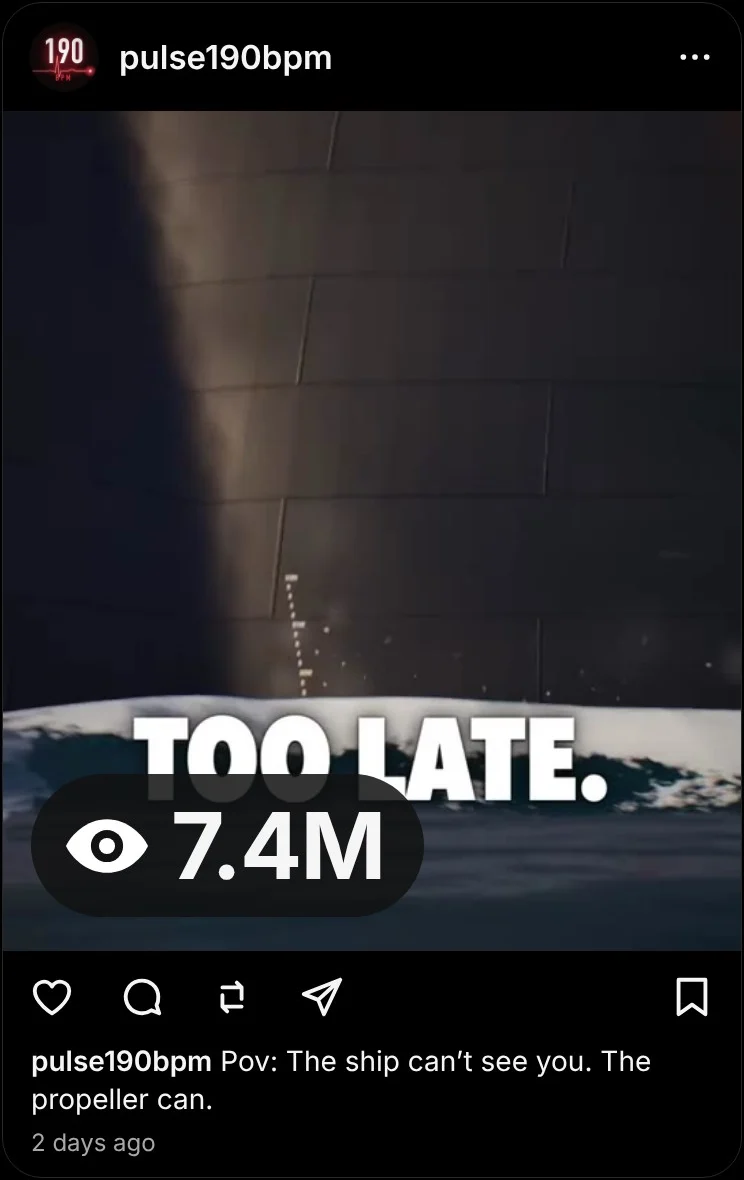
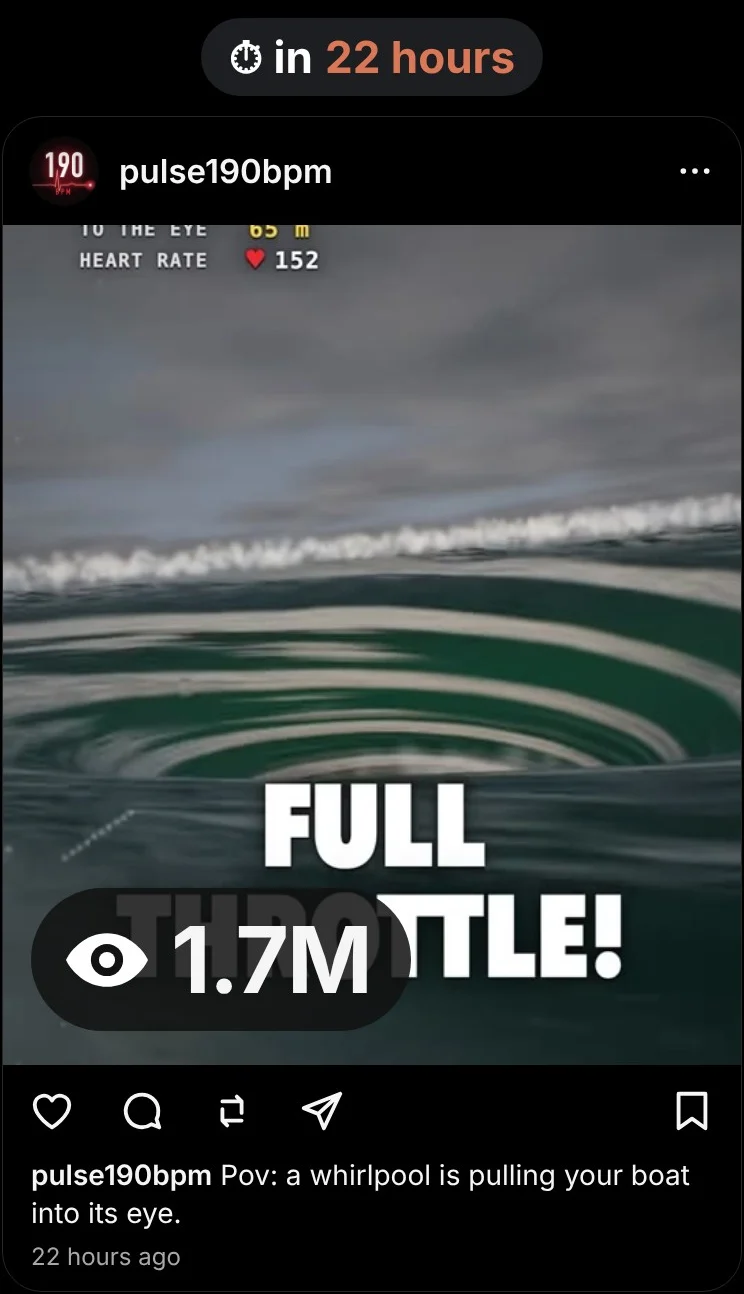
Why does a video of a ship work this well?
- It puts you in danger in the first second. “POV” plus a giant object coming at you is a hook nobody has to read twice.
- The numbers keep you watching. Distance going down, heart rate going up: people stay to see what happens at zero.
- It works without a voice. Short on-screen lines (“It can’t see you.”) carry the story in any language.
- It turns into a series. Ship, whirlpool, avalanche, airliner, tsunami: the format stays, the danger changes, and every new one sends people to the old ones.
Under the hood this is a 3D scene rendered frame by frame: a sea, a ship, a camera at water level and a few lines of text on top. You do not need a game studio for that. A web page with a free 3D library can draw it, and writing that web page is something Claude does well.
What Claude is and how to get an account
If you already use Claude, skip to the next step.
Claude is an AI assistant made by a company called Anthropic. You type what you want in plain English and it answers. It can write text, explain things and write working code. For this playbook, the code part is what matters: you describe the scene, Claude writes the program that draws it.
- Go to claude.ai in your browser, or install the Claude app on your computer or phone.
- Sign up with your email address or your Google account.
- Type your first message in the box at the bottom and press Enter. That is the whole interface.
You can do the video part on any plan. The scheduling part uses a custom connector, which is a way to plug another tool into Claude. Whether you can add one depends on your Claude plan, so check Claude’s help page about custom connectors before you count on it.

Step 1: Build the 3D scene with one prompt
Open a new chat in Claude and paste this:
Starter prompt
Make a 3D POV simulation as a single HTML file using three.js.

- Vertical canvas, 1080 x 1920, 30 frames per second, 30 seconds long
- I am floating in the open sea, camera just above the water, bobbing with the waves
- A giant container ship (about 380 m long) comes straight at me from the horizon and almost hits me at the end
- Realistic-looking waves, fog, a low sun, white foam at the bow
- A HUD in the top-left corner, drawn on the canvas: DISTANCE, IMPACT IN (seconds) and HEART RATE, which rises from 95 to 190
- Big bold captions in the middle that change every few seconds, e.g. "POV: A 380 m ship is heading straight at you", "You can’t outswim it", "It can’t even see you"
- A red vignette that gets stronger near the end

Keep everything in one file so I can open it in my browser.
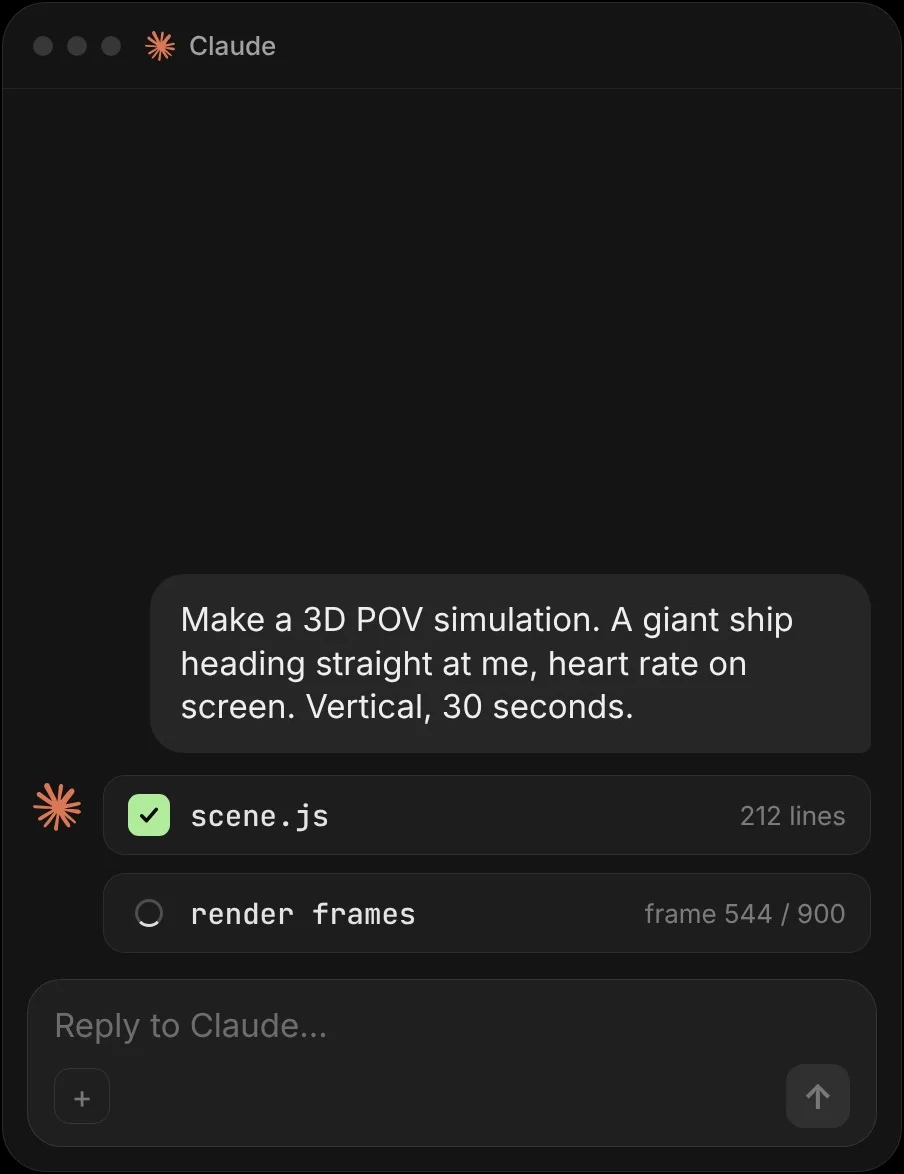
Claude writes the file. In the Claude app you often see it running next to the chat. If you only get the code, save it as ship.html and open it in Chrome; it plays right away.
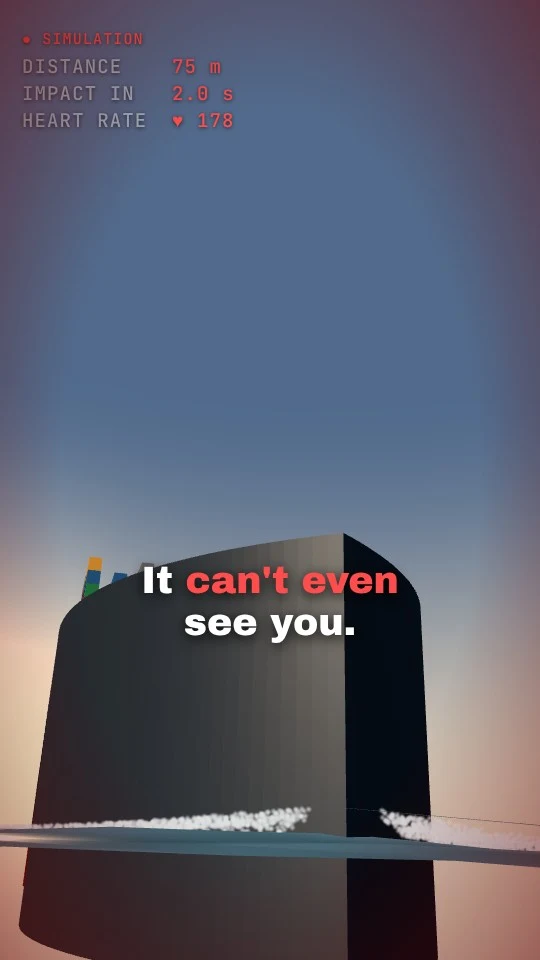
Make it look better, one message at a time
The first version will look rough. That is normal. Do not start over; say what is wrong:
- “The ship looks like a box. Give it a curved bow, a red waterline and stacks of colored containers.”
- “The sea is too flat. Make the waves bigger and darker, with sun reflections.”
- “The camera is too still. Make it rise and fall with the waves and shake a little at the end.”
- “The captions are too small. Make them bigger with a dark shadow, and highlight one word in yellow.”
Step 2: Turn it into a video file
A scene running in your browser is not a video yet. Two ways to get a file you can post:
Easy: record your screen
Open the page full screen and use the screen recorder your computer already has. Crop to vertical. Good enough for a first test.
Better: ask Claude for a Record button
Export prompt
Add a "Record" button. When I click it, restart the scene from zero, record the canvas for 30 seconds at 30 fps with the HUD and captions included, and download it as a video file. Hide the button in the recording.
If your computer struggles to play the scene smoothly, ask Claude to render it frame by frame instead: “Render every frame at a fixed time step, so the video is smooth even if my computer is slow.” If the file is .webm and an app does not accept it, any free converter turns it into .mp4.
Step 3: Make 30 scenarios, not one
One video is a test. A series is what grows an account. Ask for the whole month at once:
Series prompt
Give me 30 ideas for this POV simulation series. Each one is a different danger seen in first person, with the same HUD and caption style.
For example: a whirlpool pulling my boat in, a tsunami seen from the beach, an airliner passing just above me, an avalanche on a ski lift, a cruise ship propeller while I am diving.

For each idea give me:
- the POV line for the first second
- the three numbers on the HUD
- three short captions
- a caption for the post that ends with a question

Then build idea 1 with the same code as before.
Keep the ten ideas you would watch yourself. After the first two or three, each new scene is mostly the same code with a new object, so it goes fast.
- Put the danger in the first frame. No intro, no logo. The ship is already coming.
- Let a number hit an extreme. “190 BPM” or “0.4 s to impact” is the moment people screenshot.
- End on a question. “What would you do?” turns viewers into commenters.
Step 4: Connect postreadygo to Claude
This is where most people stop. Thirty videos for Instagram, TikTok and YouTube Shorts is 90 uploads, each with its own caption and time. You keep it up for a week and then the account goes quiet.

postreadygo is a social media scheduler that Claude can control. You connect it once, and after that you schedule by chatting. Setup takes about two minutes:
- Create a postreadygo account at postreadygo.com and open Linked in the menu. Connect the accounts you want to post to: Instagram, TikTok, YouTube, X, LinkedIn, Facebook, Threads, Pinterest or Bluesky.
- In Claude, open Settings, then Connectors, then Add custom connector. On some plans the menu is called Customize instead of Settings.
- Name it postreadygo and paste this address:
https://www.postreadygo.com/mcp - Click Connect. A postreadygo page opens. Sign in and press Allow. Claude never sees your password.
- Test it. Go back to Claude and type: “List my postreadygo accounts.” You should see the accounts you connected.
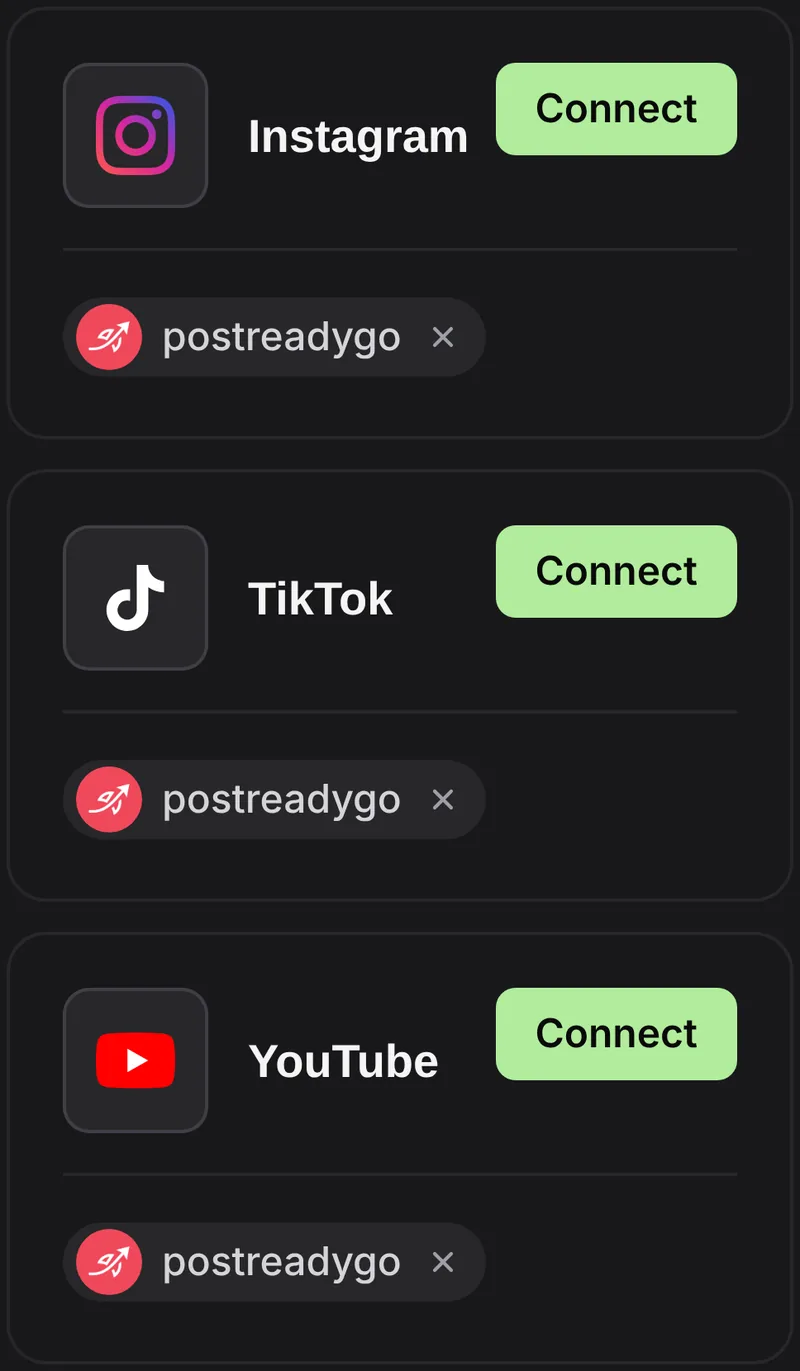
There is a longer walkthrough of the connector on the postreadygo for Claude page.
Step 5: Schedule the month in one message
Put your videos in Google Drive or Dropbox, set sharing to “anyone with the link”, and paste the links into the chat. Then say what you want:
Scheduling prompt
Here are 30 video links, in order.
Schedule them to my Instagram, TikTok and YouTube accounts, one per day at 6 PM my time, starting tomorrow.
Write a caption for each one that starts with "POV:" and ends with "What would you do?"
Show me the plan before you schedule anything.
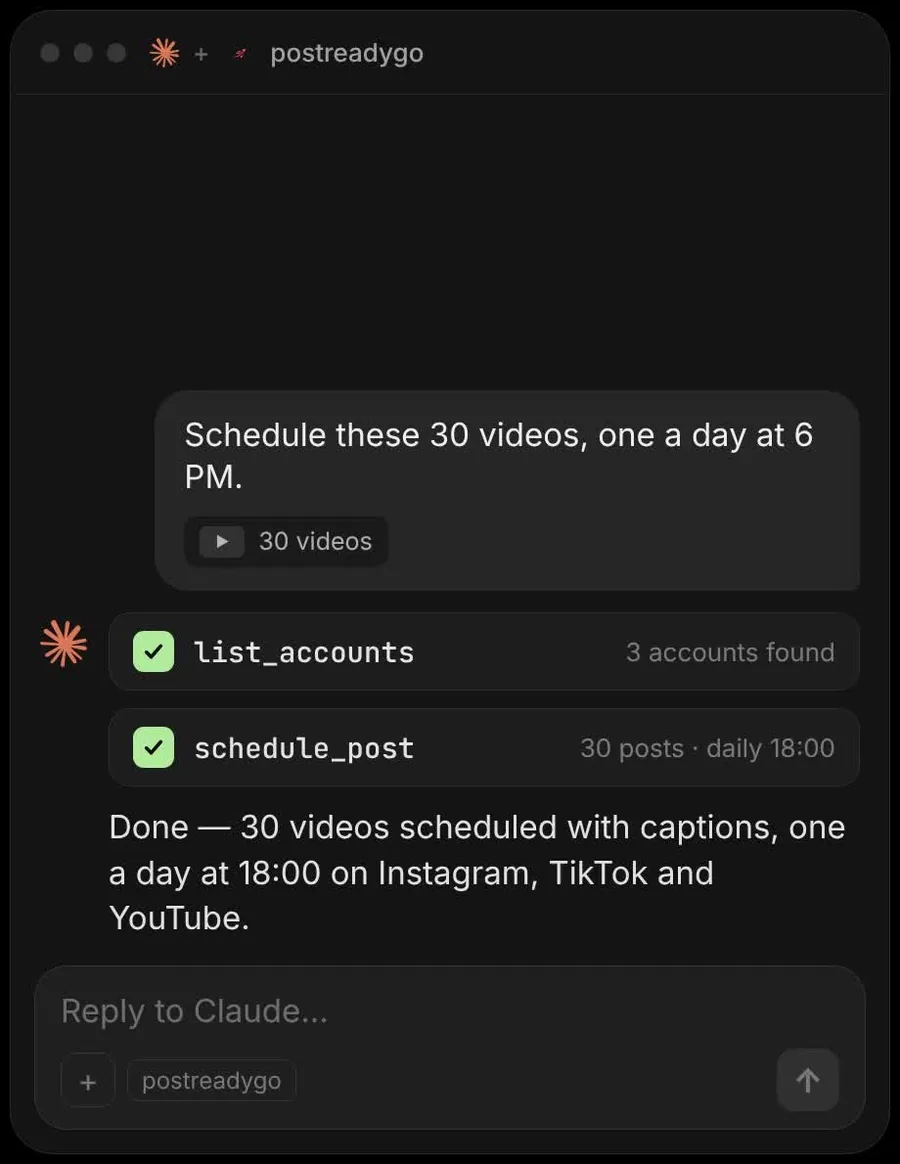
Claude lists your accounts, writes the captions, shows you the plan and, once you say yes, puts every post on your calendar:
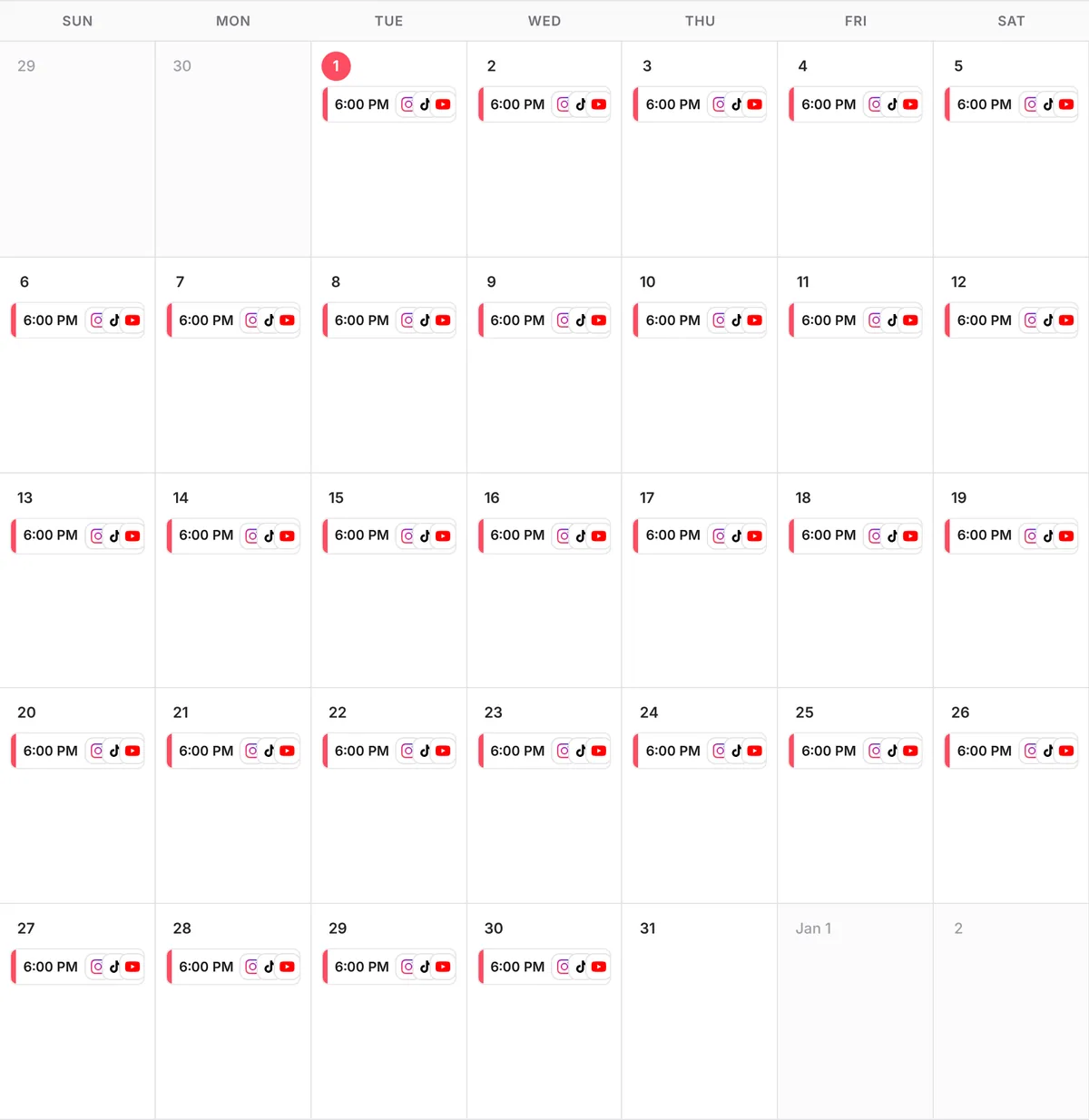
Changes work the same way: “Move Saturday’s post to 10 AM.” “Cancel part 14.” “What is going out next week?”

Advanced: keep improving
- Ask Claude what worked. With Instagram or YouTube connected, ask: “Which of my posts from the last 30 days got the most reach?” Make more of the winners.
- Test the first second. Post the same scene twice a week apart with a different POV line and compare.
- Give each platform its own caption. Short with hashtags for TikTok, a question for Instagram, a searchable title for YouTube.
- Check failures. Ask “Which posts failed this month, and why?” A disconnected account is the usual reason.
- Send traffic somewhere. Put one link in your bio and point every caption at it.
Questions people ask
Do I need to know how to code or use a 3D program?
No. You describe the scene in plain English and Claude writes a web page that draws it with a free 3D library. When something looks wrong, you say what is wrong and Claude fixes it.
Will my first video look as good as the viral ones?
Probably not on the first try. The first version is a draft. A few rounds of “make the ship bigger, the sea darker, the camera shakier” get you most of the way.
Is Claude free?
Claude has a free plan and paid plans. You can build the scene on any plan. Adding a custom connector such as postreadygo depends on your plan, so check Claude’s help page for the current rules.
Does Claude make the video file itself?
Claude writes a web page that draws the scene. You turn it into a video by recording your screen, or by asking Claude to add a Record button that downloads the video for you.
How much does postreadygo cost?
There is a 3-day free trial. After that, plans start at $9 per month. Current prices are on the postreadygo home page.
Can Claude post without asking me?
Claude shows you the accounts, captions and times and asks before it schedules or publishes. You can also review and change everything in the postreadygo calendar.
Which platforms can I schedule to?
Instagram, TikTok, YouTube, X, LinkedIn, Facebook, Threads, Pinterest and Bluesky.