How to make viral physics simulation reels with Claude (and schedule a month of them in one message)
A step-by-step guide: what Claude is, the exact prompt for a satisfying physics simulation video, how to export it, and how to schedule 30 reels to Instagram, TikTok and YouTube from one chat message.
Some of the fastest-growing accounts on Instagram right now never show a face, never pick up a camera and never open an editing app. They post physics simulations: colored balls bouncing, mixing and getting crushed inside a circle.
This playbook shows you how to make that kind of video with Claude, even if you have never written a line of code, and how to put a full month of them on a posting schedule without uploading anything by hand.
The format that is blowing up
Take one example. As of November 2026, the Instagram account @nexusboxlab had 19 posts and about 41,300 followers. One of its reels had 37.6 million views, with 769,000 likes. Two more had 30.9 million and 18.8 million.
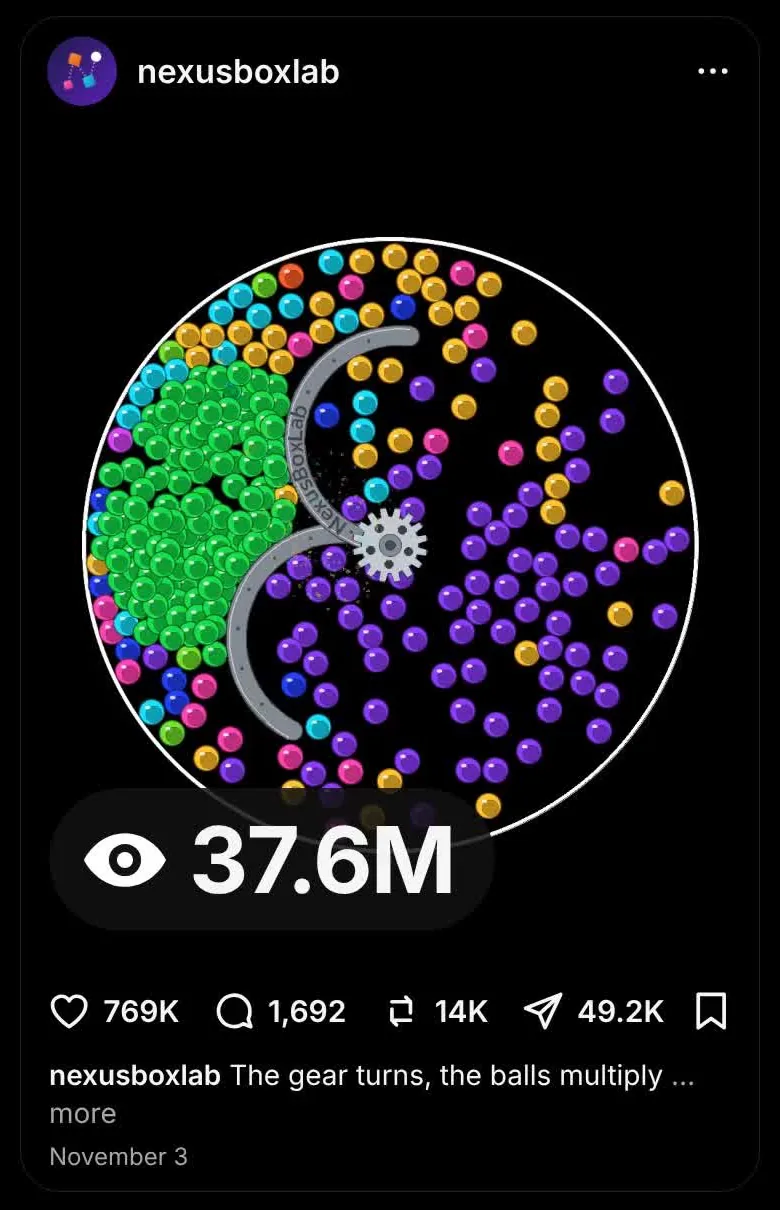
Look at what is in the video: balls, a circle, a spinning shape. That is all. So why does it work?
- You cannot predict the ending. Will the colors mix? Will the last ball escape? People stay to find out, and watch time is what the algorithm rewards.
- It works without sound and without language. Anyone in any country can watch it.
- It loops. A good simulation ends close to where it started, so people watch twice without noticing.
- It is cheap to repeat. Change one rule and you have tomorrow’s video.
These videos are not filmed and not made by an AI video generator. They are drawn by code: a small program moves every ball a tiny bit, draws the picture, and repeats that 30 times per second. That is why the motion looks so clean. And writing that kind of program is something Claude does well.

What Claude is and how to get an account
If you already use Claude, skip to the next step.
Claude is an AI assistant made by a company called Anthropic. You type what you want in plain English and it answers. It can write text, explain things and write working code. For this playbook, the code part is what matters: you describe the video, Claude writes the program that draws it.
- Go to claude.ai in your browser, or install the Claude app on your computer or phone.
- Sign up with your email address or your Google account.
- Type your first message in the box at the bottom and press Enter. That is the whole interface.
You can do the video part of this playbook on any plan. The scheduling part uses a custom connector, which is a way to plug another tool into Claude. Whether you can add one depends on your Claude plan, so check Claude’s help page about custom connectors before you count on it.

Step 1: Make the simulation with one prompt
Open a new chat in Claude and paste this:
Starter prompt
Make a satisfying physics simulation as a single HTML file.

- Vertical canvas, 1080 x 1920, 30 frames per second
- About 600 small colored balls inside a white circle on a dark background
- Gravity, and the balls bounce off each other and off the circle
- A bar in the middle that spins and mixes the colors
- A short title at the top: "Mix all the colors"
- It should run for 30 seconds and look good on a loop

Keep everything in one file so I can open it in my browser.
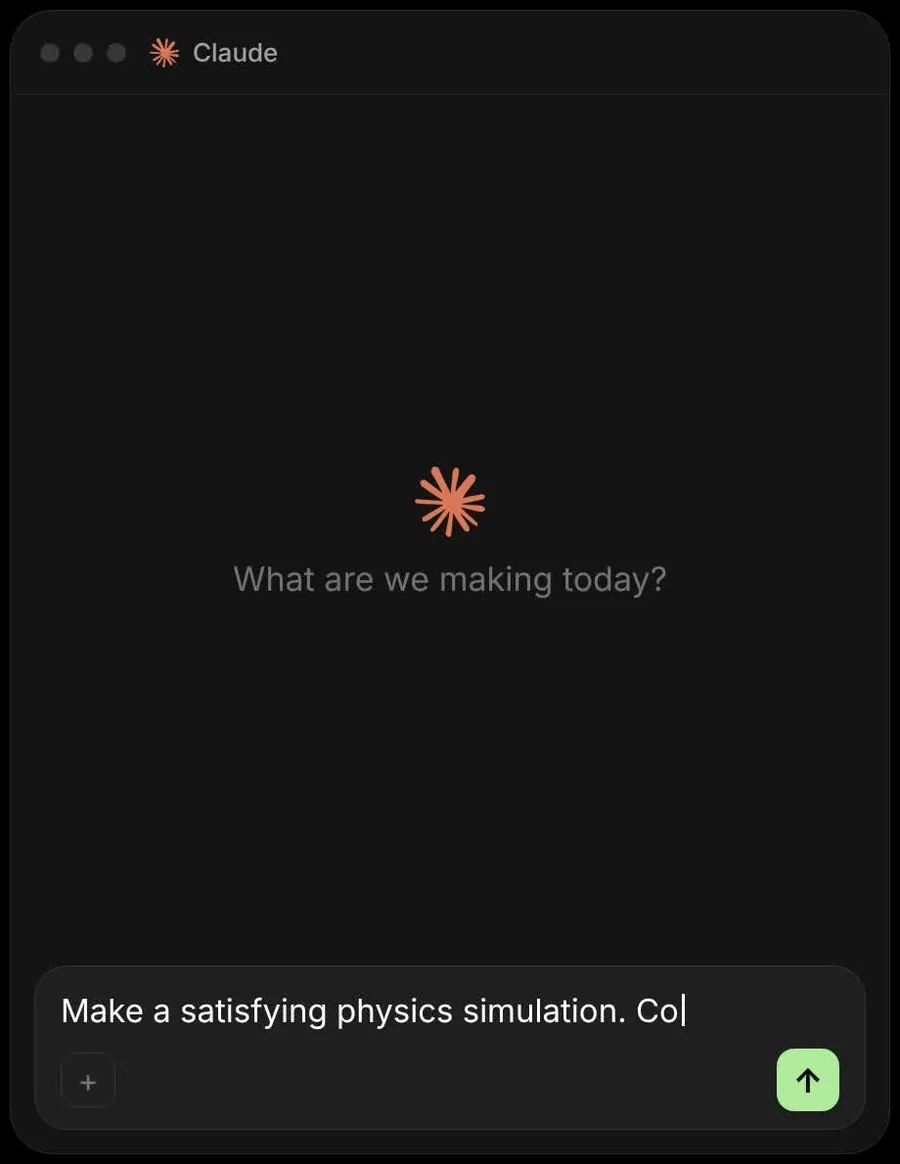
Claude writes the file. In the Claude app you usually see it running right next to the chat. If you only get the code, save it as simulation.html and double-click it; it opens in your browser and plays.
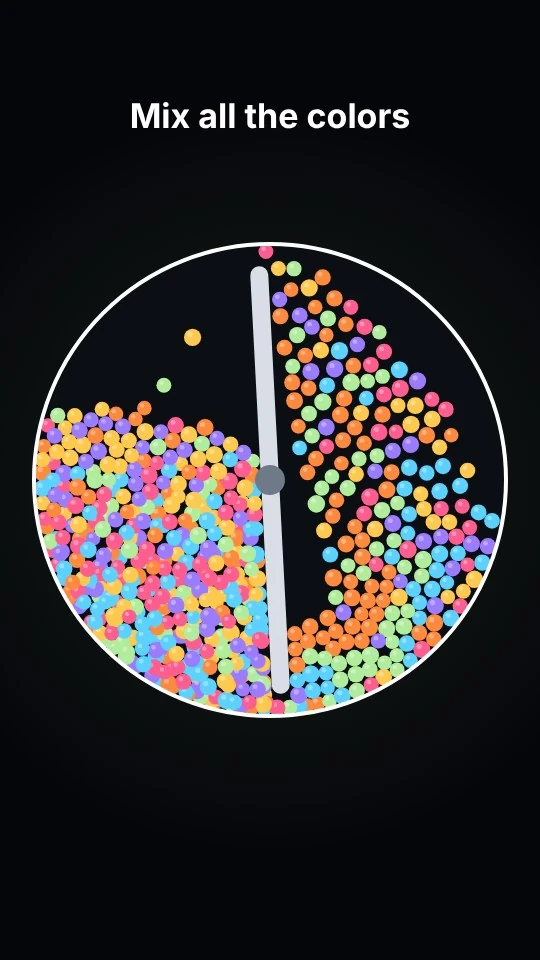
It will not be perfect the first time
That is normal. Do not start over. Tell Claude what is wrong, the way you would tell a person:
- “The balls are too big. Make them half the size and add more.”
- “The bar spins too fast. Slow it down by half.”
- “The colors are dull. Use bright colors on a darker background.”
- “Some balls go through the wall. Fix that.”
Step 2: Turn it into a video file
A simulation running in your browser is not a video yet. There are two simple ways to get a file you can post.
Easy: record your screen
Open the simulation full screen and record it with the screen recorder your computer or phone already has. Crop it to vertical. This is fine for your first few videos.
Better: ask Claude for a Record button
Export prompt
Add a "Record" button to the page. When I click it, restart the simulation, record the canvas for 30 seconds at 30 fps, and download the result as a video file. Hide the button in the recording.
Now every simulation exports itself with one click, at full quality, with no cropping. If the downloaded file is a .webm and an app does not accept it, ask Claude how to convert it to .mp4; any free converter does it.
Step 3: Make 30, not one
One video is a test. A series is what grows an account, because every new part sends people back to the earlier ones. Ask for the whole month at once:
Series prompt
Give me 30 variations of this simulation for a daily series.
Each one changes exactly one rule. For example: the shape in the middle, gravity pulling sideways, balls that split in two when they hit the wall, a gap in the circle that lets balls escape, two colors that destroy each other.

For each variation give me:
- a 4-word title to show on screen
- the one rule that changes
- a caption that ends with a question

Then build variation 1.
Not all 30 ideas will be good. Keep the ten you would watch yourself and ask for more like those. Then say “build variation 2”, export, and repeat. After the first two or three, each new video takes a few minutes.
- Put the question on screen. “Which color wins?” gives people a reason to comment.
- Start in the middle of the action. The first second should already be moving.
- Keep the same look. Same background, same font, same circle. People should recognize your video before they read the name.
Step 4: Connect postreadygo to Claude
Here is where most people stop. Thirty videos for Instagram, TikTok and YouTube Shorts is 90 uploads, each with its own caption and time. You keep it up for a week and then the account goes quiet.

postreadygo is a social media scheduler that Claude can control. You connect it once, and after that you schedule by chatting. Setup takes about two minutes:
- Create a postreadygo account at postreadygo.com and open Linked in the menu. Connect the accounts you want to post to: Instagram, TikTok, YouTube, X, LinkedIn, Facebook, Threads, Pinterest or Bluesky.
- In Claude, open Settings, then Connectors, then Add custom connector. On some plans the menu is called Customize instead of Settings.
- Name it postreadygo and paste this address:
https://www.postreadygo.com/mcp - Click Connect. A postreadygo page opens. Sign in and press Allow. Claude never sees your password.
- Test it. Go back to Claude and type: “List my postreadygo accounts.” You should see the accounts you connected.
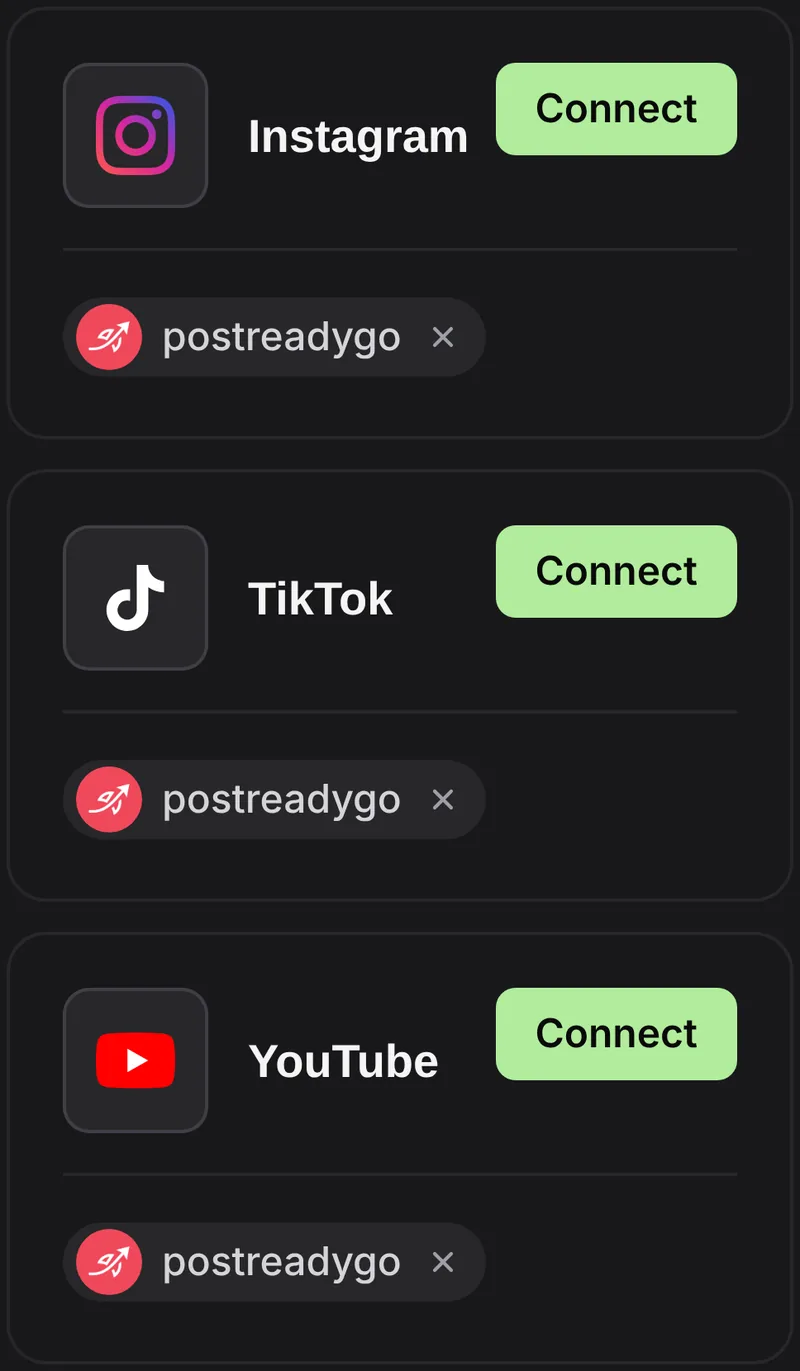
There is a longer walkthrough of the connector, including what Claude can and cannot do with it, on the postreadygo for Claude page.
Step 5: Schedule the month in one message
Claude needs a way to reach your video files. The simplest is a folder of public links: put the 30 videos in Google Drive or Dropbox, set sharing to “anyone with the link”, and paste the links into the chat. Then say what you want:
Scheduling prompt
Here are 30 video links, in order.
Schedule them to my Instagram, TikTok and YouTube accounts, one per day at 6 PM my time, starting tomorrow.
Write a caption for each one. End every caption with "Part X of 30. Follow for the next one."
Show me the plan before you schedule anything.
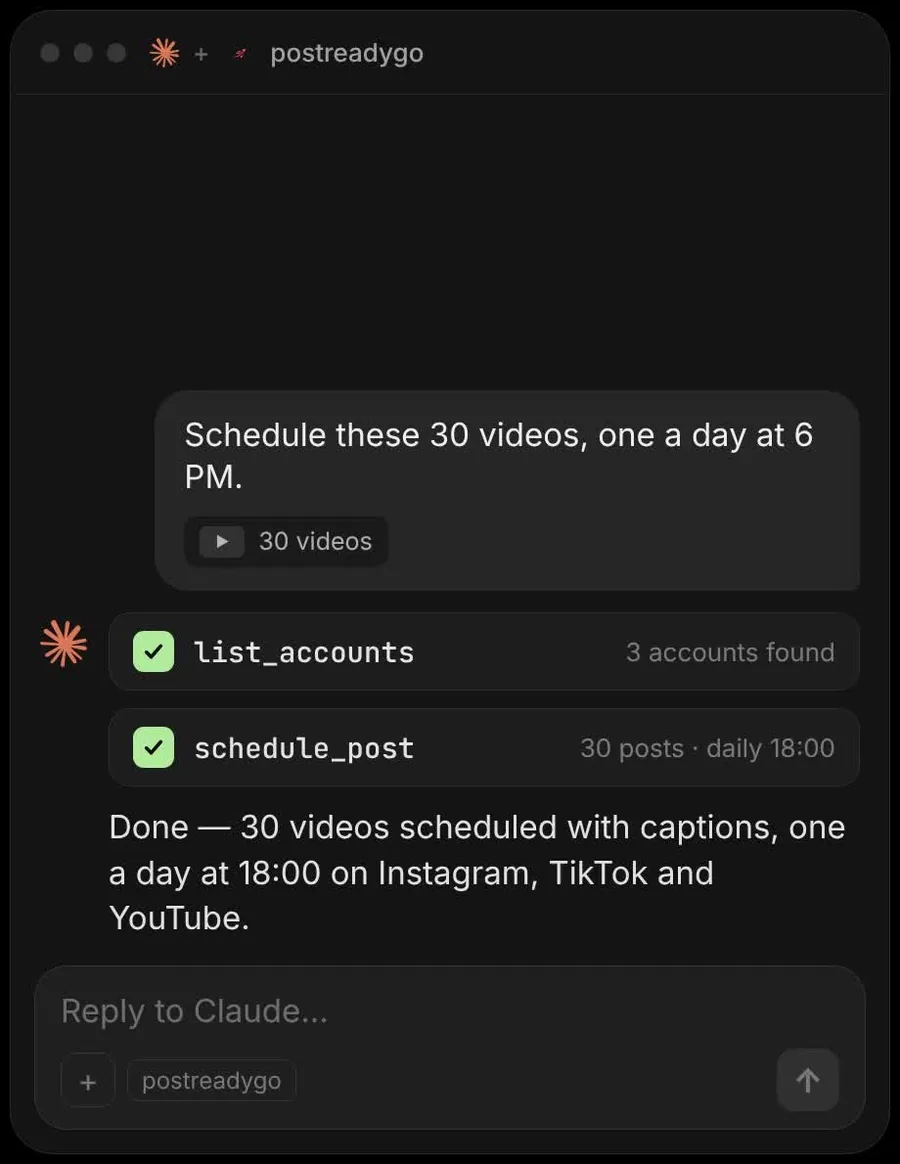
Claude lists your accounts, writes the captions, shows you the plan and, once you say yes, puts every post on your calendar. Open postreadygo and you will see the whole month:
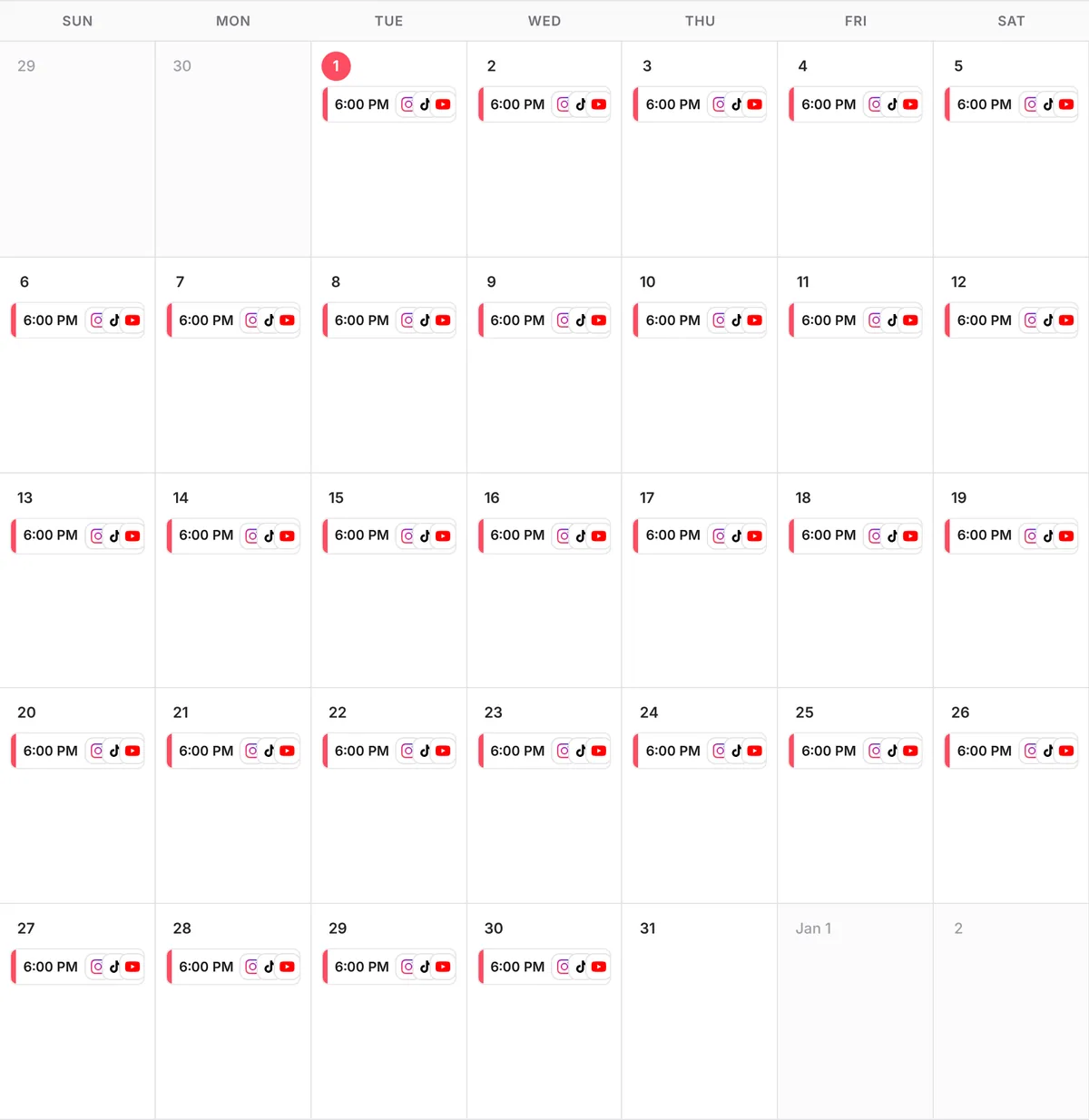
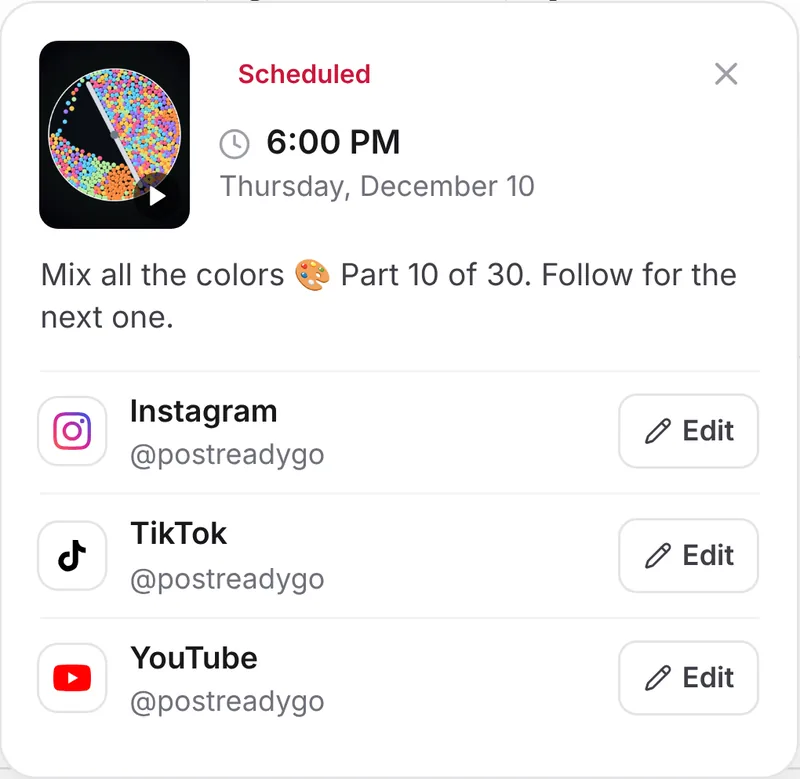
From here you can change things the same way: “Move Saturday’s post to 10 AM.” “Cancel part 14.” “What is going out next week?”

Advanced: keep improving
- Ask Claude what worked. With an Instagram or YouTube account connected, ask: “Which of my posts from the last 30 days got the most reach?” Then make more like the winners.
- Test posting times. Schedule the first ten days at 6 PM and the next ten at noon, then compare.
- Give each platform its own caption. Tell Claude: “Short caption with hashtags for TikTok, a longer one with a question for Instagram, a searchable title for YouTube.”
- Check failures. Ask “Which posts failed this month, and why?” A disconnected account is the usual reason, and it takes a minute to fix.
- Send traffic somewhere. Views are not the goal. Put one link in your bio and point every caption at it.
Questions people ask
Do I need to know how to code?
No. You describe the video in plain English and Claude writes the code. When something looks wrong, you say what is wrong and Claude fixes it.
Is Claude free?
Claude has a free plan and paid plans. You can make the simulation on any plan. Adding a custom connector such as postreadygo depends on your plan, so check Claude’s help page for the current rules.
Does Claude make the video file itself?
Claude writes a small web page that draws the animation. You turn it into a video by recording your screen, or by asking Claude to add a Record button that downloads the video for you.
Will Instagram label these videos as AI?
The video is an animation drawn by a program, not AI-generated footage. Each platform has its own rules about labeling, so read them and label your content when they ask you to.
How much does postreadygo cost?
There is a 3-day free trial. After that, plans start at $9 per month. Current prices are on the postreadygo home page.
Can Claude post without asking me?
Claude shows you the accounts, captions and times and asks before it schedules or publishes. You can also review and change everything in the postreadygo calendar.
Which platforms can I schedule to?
Instagram, TikTok, YouTube, X, LinkedIn, Facebook, Threads, Pinterest and Bluesky.