How to Post on TikTok From a Computer (PC and Mac)
Upload TikTok videos from a PC or Mac with TikTok Studio or a scheduler. Steps for uploading, captions, covers and scheduling, plus what only the phone app can do.
If you edit on a computer, there is no need to move every file to your phone. Here is how to post TikToks straight from a PC or Mac.
Key takeaways
- TikTok Studio at tiktok.com uploads and schedules videos from a browser.
- A scheduler uploads once to TikTok, Instagram and YouTube.
- Use the app for trending sounds, effects and Stories.
Upload with TikTok Studio
- Go to tiktok.com and log in.
- Open TikTok Studio and click Upload.
- Drag in your video file.
- Write the caption with hashtags, choose a cover and set who can watch, comment, duet and stitch.
- Click Post, or turn on Schedule to pick a time up to 10 days ahead.

Upload with a scheduler
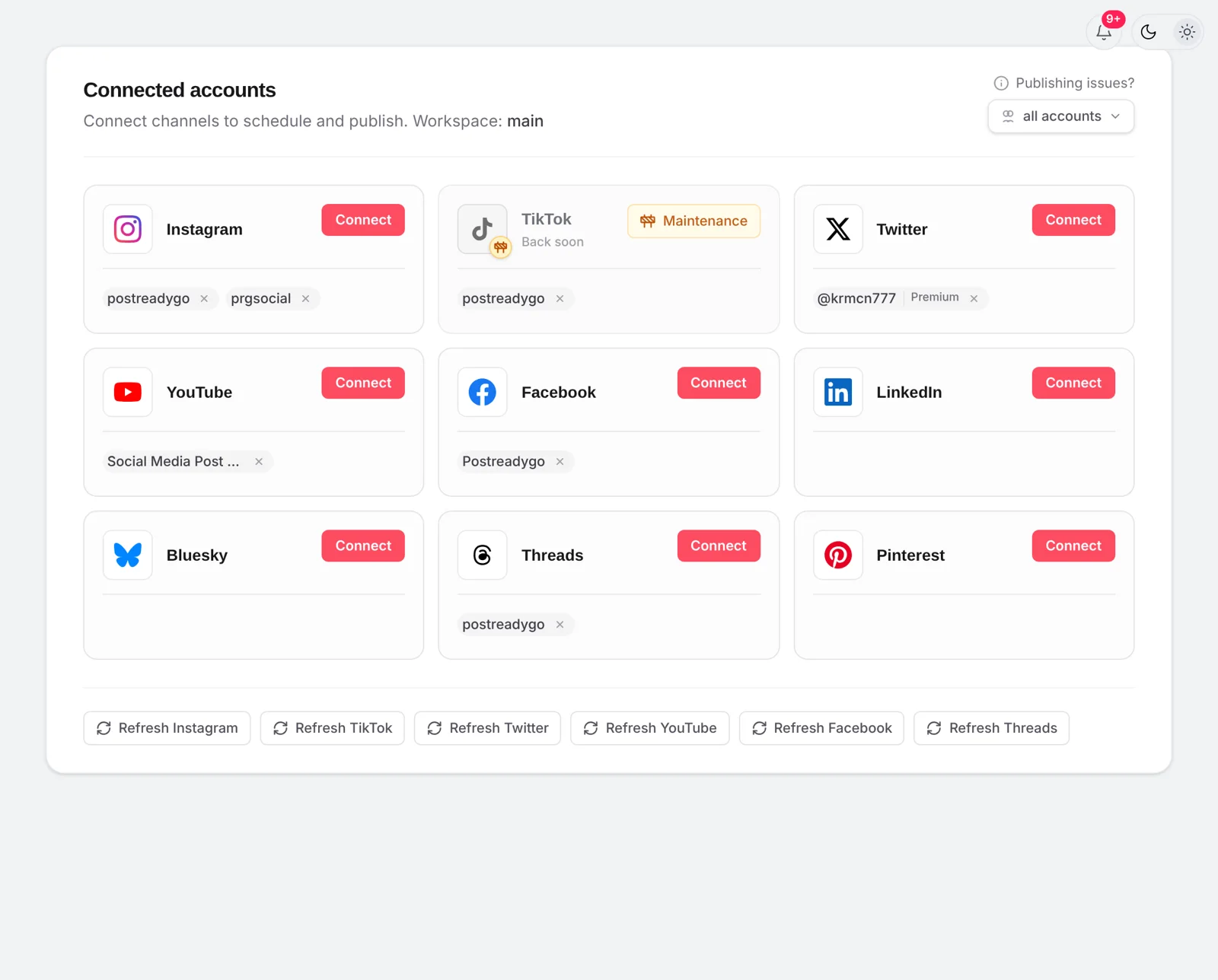
With postreadygo you upload one file, choose TikTok plus any other accounts, and post now or at a set time. It also handles TikTok photo carousels.
What still needs the phone app
- Trending sounds from TikTok’s library.
- Filters, effects and templates made in the TikTok editor.
- TikTok Stories and LIVE.
Frequently asked questions
Can I upload to TikTok from my computer?
Yes. Go to tiktok.com, open TikTok Studio and click Upload. You can add a caption, cover and schedule from there.
Can I add TikTok sounds when uploading from a PC?
Sound options on desktop are limited. If you want a trending sound from TikTok’s library, finish the video in the app.
Is uploading from a computer bad for views?
No. TikTok does not rank videos by the device they were uploaded from.
Want to plan TikToks from your computer without being online at the right minute? Start free with postreadygo and schedule TikTok, Instagram and YouTube from one calendar.
More TikTok guides
- Best Time to Post on TikTok in 2026 (Find Your Own Time)
- How to Schedule TikTok Posts in 2026 (Desktop and Scheduler)
- TikTok Video Size and Length Guide (2026 Specs)
- How Often Should You Post on TikTok in 2026?