How to Upload YouTube Shorts From a PC or Mac
Upload YouTube Shorts from your computer with YouTube Studio: the file rules that make a video a Short, the steps, and how to schedule Shorts from desktop.
You do not need your phone to post Shorts. If the file follows two rules, YouTube turns any upload into a Short.
Key takeaways
- Make the video vertical or square and up to 3 minutes.
- Upload it in YouTube Studio like any video.
- Schedule it with Visibility → Schedule.
What makes a video a Short
- Aspect ratio: 9:16 vertical or 1:1 square.
- Length: up to 3 minutes.
- The #Shorts hashtag is optional.
How to upload a Short from your computer
- Open studio.youtube.com and click Create → Upload videos.
- Select your vertical video file.
- Write a title (searchable, under 100 characters) and a short description.
- Choose Public, or Schedule for later, and click Publish.

Schedule Shorts from desktop
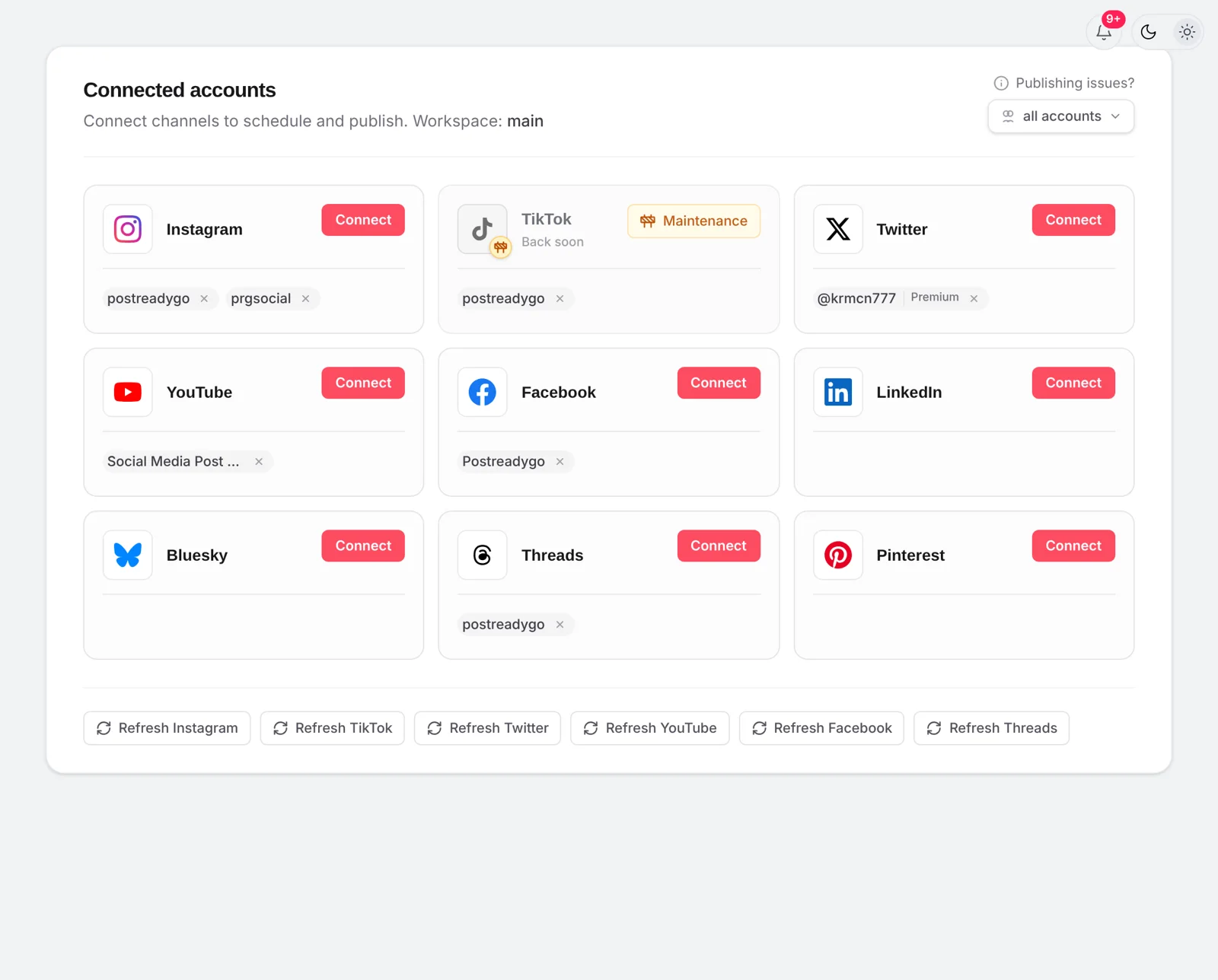
In YouTube Studio pick Schedule on the Visibility step. To post the same Short to Instagram Reels and TikTok too, upload it once in postreadygo and select all three accounts.
Frequently asked questions
Can you upload Shorts from a computer?
Yes. Upload a vertical or square video of up to 3 minutes in YouTube Studio and it becomes a Short.
Why did my Short upload as a regular video?
Usually because it is horizontal or longer than 3 minutes. Re-export it as 9:16 and under 3 minutes.
Can I add music to a Short uploaded from a PC?
Not from YouTube’s Shorts library on desktop. Add licensed or original audio to the file before uploading, or add a sound in the app.
Want to plan your Shorts ahead? Start free with postreadygo and schedule YouTube, Instagram and TikTok from one calendar.
More YouTube guides
- Best Time to Post on YouTube in 2026 (Videos and Shorts)
- How to Schedule YouTube Videos and Shorts (Step by Step)
- YouTube Shorts Length and Size Guide (2026 Specs)
- YouTube Thumbnail Size Guide (2026): Dimensions, File Size, Tips